
Running OneDrive on Linux isn’t as straight forward or as baked in as you might like in the Windows world, but it IS possible to get this working in popular Linux distros. If you’re coming into the Linux ecosystem for the first time from Windows, but have stacks of files in OneDrive there’s two options to access this in Linux:
- OneDrive Online (Web)
- OneDrive Linux Client
While the OneDrive Online Web works just fine, you’re missing out on the easy desktop access and synchronization you get on Windows.
So here, I’m going to cover how you can get a OneDrive client working on Linux. In my testing and usage, I use Linux Mint 22 for this so your mileage may vary depending on your distro.
OneDrive Client Compatibility
Before we get started, it’s important to state that this client is compatible with the following OneDrive and SharePoint Services:
- Works with OneDrive Personal, OneDrive for Business, and Microsoft SharePoint Libraries.
- Full support for shared folders and files across both Personal and Business accounts.
- Supports single-tenant and multi-tenant Microsoft Entra ID environments.
- Compatible with national cloud deployments:
- Microsoft Cloud for US Government
- Microsoft Cloud Germany
- Azure/Office 365 operated by VNET in China
Source: GitHub – abraunegg/onedrive: OneDrive Client for Linux · GitHub
Warning: No File-on-Demand!
As of time of writing [April 2026], the OneDrive for Linux Client does not support Files on Demand like you would find in Windows. So, if you have 200GB in your OneDrive, it will download and sync ALL your files! But keep reading I do provide information on the Selective Sync feature.
Being Open Source software, this is all working as-is and at your own risk. Ensure you have backups of your data before doing syncs, or some test with small batches where possible. This software is NOT supported by Microsoft.
OneDrive Linux Client Parts
There are two parts to the OneDrive Linux Client that you need:
- OneDrive Client
- OneDrive Client Desktop GUI Software
The OneDrive Client is a command line utility that connects you to you OneDrive account and syncs this down to your Desktop, and the GUI provides you with an easy interface to setting up, managing and monitoring the sync.
Client Installation
OneDrive Client
GitHub – abraunegg/onedrive: OneDrive Client for Linux · GitHub
The first step you want to do is to install the OneDrive Client most compatible with your distro of Linux. This link task you to the page for installing pakcages for your distro:
onedrive/docs/install.md at master · abraunegg/onedrive · GitHub
You might find that packages like DEB/RPM are a few versions behind the source packages.
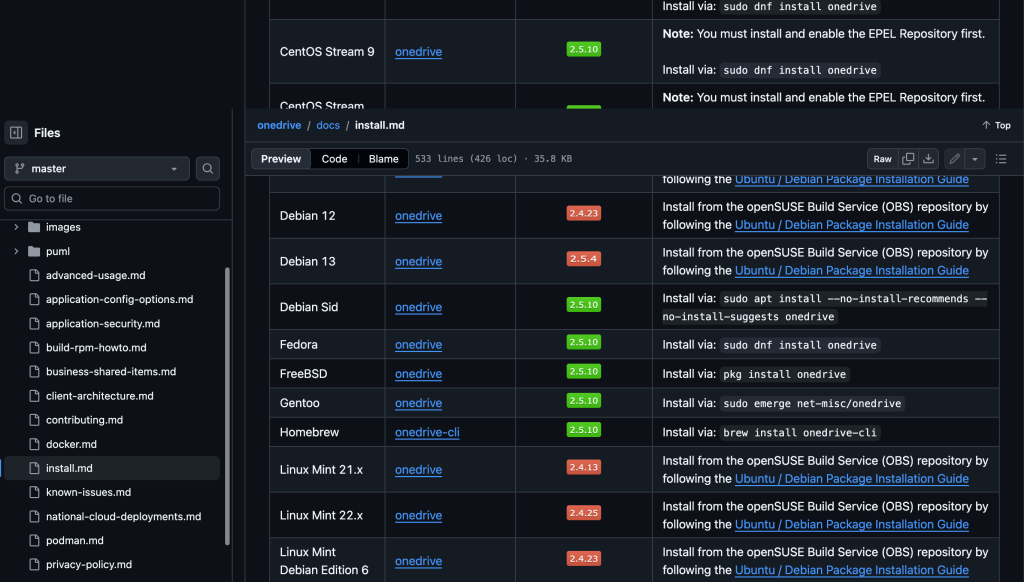
While it is most distro will have a prepackaged distro, I do recommend compiling form source. This will guarantee you’re getting the latest version.
Building from Source: onedrive/docs/install.md at master · abraunegg/onedrive · GitHub
OneDrive GUI
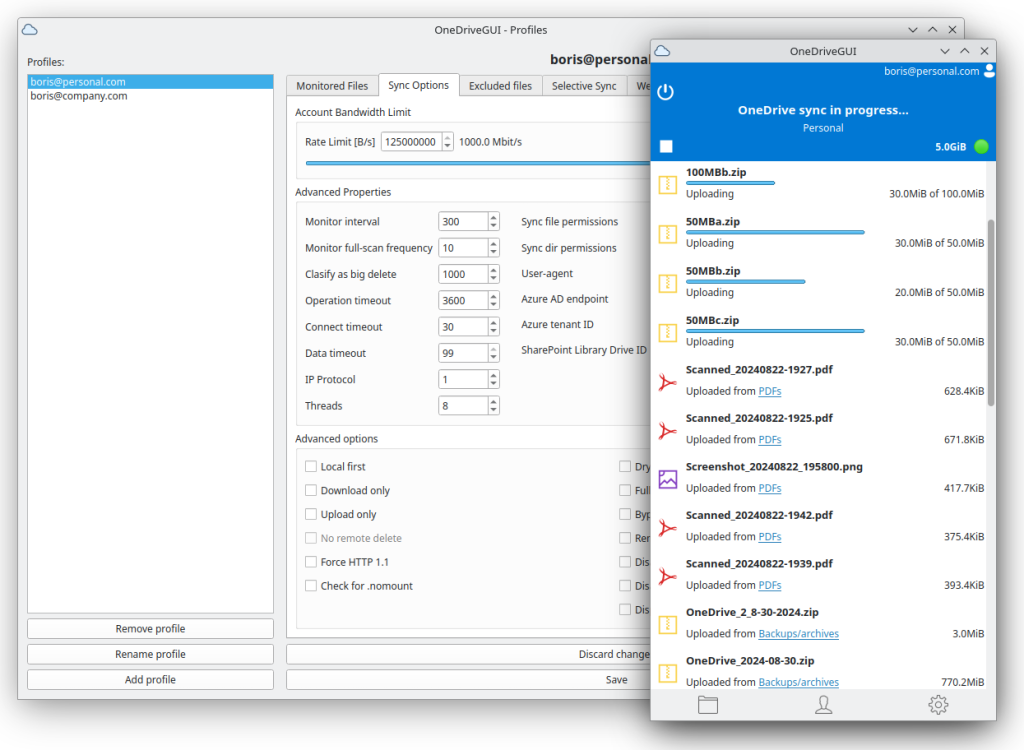
Once you have the Client has been installed you can the the GUI part of the software. This part is way easier. Just download the AppImage, make it executable and then run it.
At the end of this article, I’ve provided a link to my script to install and upgrade these easily.
Initial Setup
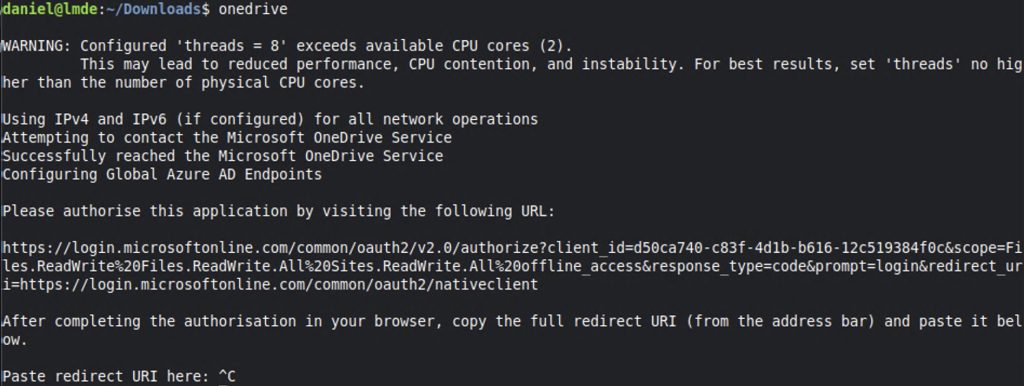
Once you’ve got it running you can then follow the guide to setting up your account.
Following the First Steps guide will help you get the accounts connected. This can either be done using the Command Line, or using the GUI App.
Setting Up Selective Files
The first thing I do anytime I setup this software is to configure the Selective Folders setting. This allows me to Include and Exclude particular folders in OneDrive to be sync’d. I’ve got a copy of old MP3 Music and I’ve got no reason to sync any of this down.
The basics are to include files/folders:
- Include the Backup folder OR any file/folder named “Backup” ANYWHERE
e.g. Backup - Include Documents directory ANYWHERE
Documents/ - Include all PDF files inside any Documents folder
Documents/*.pdf - Include one specific file, if present inside ANY Documents folder
Documents/latest_report.docx - Include the /Backup/ folder ONLY in the OneDrive root
/Backup/ - Include Blender ONLY if in root
/Blender
And to Exclude files/folders from Sync, just add a Exclamation Mark (!) at the start:
- Exclude temporary folders inside ANY Documents folder (any level)
!Documents/temp* - Exclude Secret_data ONLY in OneDrive root
!/Secret_data/*
You can find more information in the documentation for Sync List.
Example Selective Files
As an example, this is my list that I use for filter out the files I want sync’d to my Linux desktops.
#Exclusions
!/Documents/Work
!/Documents/Training
!/Documents/Travel
!/Documents/Visual Studio 2022
#Game Folder Exclusions
!/Documents/My Games
!/Documents/Games
!/Documents/Games/Captures
!/Documents/Electronic Arts
!/Documents/Klei
!/Documents/Guild Wars 2
!/Documents/Rockstar Games
!/Documents/Universe Sandbox
#Inclusions
/Desktop
/Documents
/Documents/Games/Dungeons And Dragons (DnD)
OneDrive Install Script
I’ve created this script that:
- Install Prerequities for Installing from Source
- Downloads the source to be compiled
- Compiles and installs the OneDrive Client from source
- Downloads the AppImage OneDrive Client GUI
- Provides easy method to upgrade the source client
You can check out the code here:
basicwombatscripts/Linux/OneDriveInstall.sh at main · BasicWombat/basicwombatscripts · GitHub
If you’ve found this article helpful, please share or leave a comment below. You can also check out some my other Linux articles. Featured image was generated using Copilot AI.